
How to Play Drawquarium: Controls and Game Loop
How to play Drawquarium on PC: editor controls, the tank icon rail, feeding, cleaning, goals, and wallpaper mode in one walkthrough.
Drawquarium is played almost entirely with a mouse. The Steam page lists Mouse Only Option and Playable without Timed Input, so there is no twitch skill check and no fail screen waiting for you. You draw a fish, put it in a tank, keep it fed and clean, and spend the Golden Scales you earn on templates, tools, and tank parts. This page walks through the screens in the order you meet them, using the official store screenshots as the reference for what the interface contains.
After the first session, the tips and tricks guide→ covers the next layer.
The loop in one paragraph
Open the tank, check the fish cards, feed anyone who is hungry, vacuum leftover food, collect any floating Golden Scales, finish a goal or two, then spend the payout on an unlock. Between those maintenance passes you draw: a new fish, a plant, a background, or a piece of food. The tank is the menu, and the left-side icon rail is the main navigation.
The tank screen
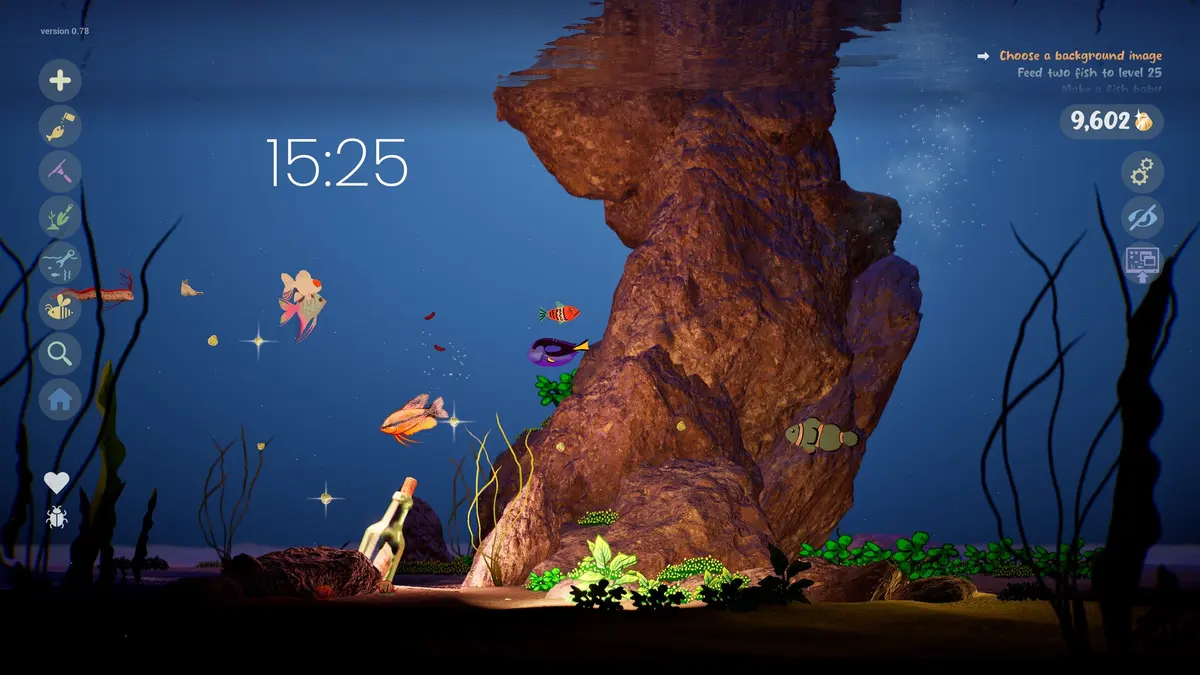
The official screenshots show a vertical rail of round icons on the left: add, feed, tools, plants, substrate, fish list (magnifier), home, relationships (heart), and worms. On the right side are settings (gear), a hide-interface eye, and the wallpaper-mode icon. Top right holds the Golden Scale counter. Top center holds the goals list and a large clock.
Treat the rail as three groups. The top icons create things. The middle icons inspect and maintain. The bottom icons change the view or move you between tanks. You do not need to memorize every icon; hover text appears on the round buttons in the screenshots.
The drawing editor
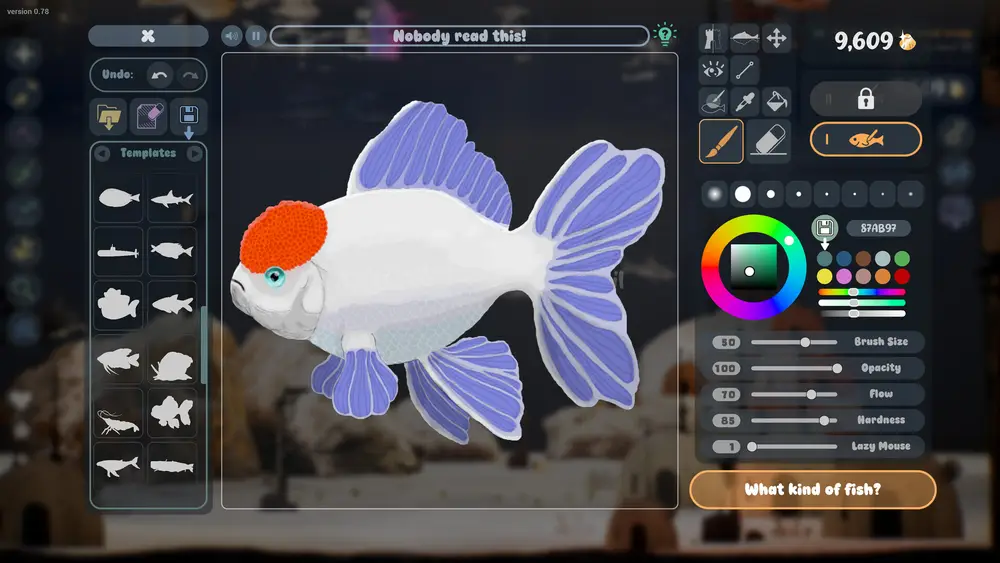
The editor opens with a template grid on the left, a canvas in the middle, and a tool column plus color controls on the right. The official gallery shows undo and redo at the top, a save control, and a text field for the fish name. The right column includes shape, mirror, fill, brush, and eraser tools, a color wheel with a hex input, and sliders for brush size, opacity, flow, hardness, and lazy mouse.
The bottom button changes with the editor: "What kind of fish?" in the fish editor, "Let's eat" in the food editor. The fill tool exposes threshold, opacity, and softness. The eyes category shows a grid of eye art with tooltips such as Looking Eye.
Draw with the biggest brush you can tolerate. You can always refine an outline; you cannot add detail that the tank camera will resolve. The fish swim at a distance, behind plants and caustics, and the wallpaper view scales the whole scene.
Feeding and food
Food is drawn, not bought. The food editor uses the same canvas but a different template row: circles, bananas, snakes, donuts, snowmen. The brush settings in the screenshot are much larger (size 512, hardness 1), which suits big simple shapes.
Put food in the tank and watch which fish goes for it. The demo page lists bottom-feeding fish that eat leftover food, so a mixed tank can partly clean itself. It does not clean everything. The aquarium vacuum is still required for the food and debris that settles.
Cleaning
The September update made leftover food and debris persist. That means overfeeding has a visible cost: the tank gets messy, and you spend time vacuuming instead of drawing. Clean after every feeding session, not once a day. The vacuum is one of the tools in the rail; the exact icon differs by build, but the tooltip identifies it.
Goals and Golden Scales
The goals panel is a to-do list for the tank. The screenshots show entries such as "Choose a background image", "Feed two fish to level 25", and "Make a fish happy". Complete them for currency and direction. Golden Scales also float in the water as pickups; click them when they glint.
The currency is spent on unlocks. The template popup in the gallery shows "Unlock for 2 Golden Scales / You have 8", so the game is explicit about price and balance before you commit. There is no published exchange rate or farming rate, so do not trust any guide that quotes one.
Fish cards and relationships
Click a fish to open its card. It shows the name, hunger ring, level, days old, a personal quote, and five round actions: feed, growth, move to another tank, relationships, and food bag. Medals can appear above the card after milestones.
Relationship status matters for breeding. The heart button opens the relationship view. The store page says fish form friendships, rivalries, and romances, and the September post confirms babies that grow. You do not need to manage genetics on day one; you need two healthy adults and space.
Wallpaper mode
The wallpaper icon turns the tank into the Windows desktop background. The game minimizes to the system tray; the tray menu has Return to Game. Desktop icons and the taskbar stay usable. The September update says the mode was made more stable and that audio now behaves when switching modes.
Wallpaper mode is a viewing mode. Do not try to draw or rearrange the tank while it is active. Return to the game window for edits, then switch back.
The store page lists Camera Comfort, Mouse Only Option, Playable without Timed Input, and Stereo Sound under accessibility-style features. Those are the developer's labels, not a full accessibility audit.
Official source: Drawquarium on Steam ↗ and the demo page ↗, rokaplay ↗ and the Drawquarium Discord ↗
What to do when you feel stuck
The goals list is the designed answer. If it is empty, pick one of three jobs: improve the tank's composition, draw a fish with a behavior you have not tried, or push a fish toward its next level. The game has no punishment for pausing, so a stuck session is usually a missing goal rather than a missed mechanic.
FAQ
Can I play Drawquarium with a controller?
No controller support is listed on the Steam page. The listed input feature is Mouse Only Option, and the editor relies on cursor precision.
Is there a fail state?
No. Fish can be hungry or unhappy, and the tank can get dirty, but the store page does not describe death, bankruptcy, or a game-over screen.
Do I need to draw every fish myself?
No. Templates are the intended starting point, and the demo page lists custom templates and categories. Importing a PNG is also supported if you would rather bring in outside art.
How do I pause?
The game minimizes to the tray in wallpaper mode and can be closed like any Windows app. There is no timed event that requires you to stay at the screen.
More Drawquarium Guides
How levels, days old, medals, metallic shimmer, and golden fish work in Drawquarium, and what the level 25 goal actually asks for.
A Drawquarium fish list built from official screenshots and patch notes: body templates, bottom feeders, jellyfish, sharks, and golden fish.
Use Drawquarium as a focus companion: the clock, timer, journal, checklist, and wallpaper mode, plus a simple work session setup.
How the Drawquarium food editor works, which shapes to draw, how portion size affects leftovers, and why bottom feeders still need the vacuum.
A practical Drawquarium guide for the first hour: draw a fish that reads well, feed it, finish early goals, and unlock your first upgrades.
Where Drawquarium runs: Windows PC requirements, Mac and Linux answers, Steam Deck compatibility, mobile, and console availability.
Drawquarium's price has not been announced. What is confirmed, how regional pricing works, whether it is free, and how to avoid overpaying.
Drawquarium launches on November 13, 2026 for Windows on Steam. What is confirmed about the release, the trailer, wishlists, and launch day.